Opening a photo or video full screen
In short
Tap a photo or video in a chat to open it full screen.
At the top: Back, Download (saves a copy to your phone), Forward, Add to status, and the three dots.
The three dots open: Edit, Share, Save to Vault, Show in chat, Ask Kaalo-Mate, Delete and More. Some items appear only when they apply to that message.
Opening a photo or video full screen
Tap a photo or video to open it full screen.
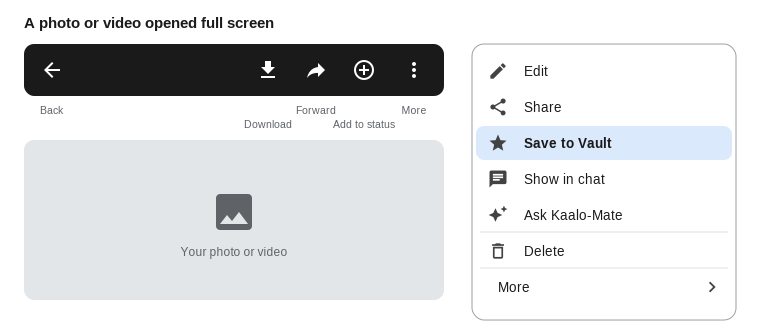
Back returns to the chat.
Download saves a copy to your phone.
Forward sends it to another chat.
Add to status posts it to your Status (How to post a status and how long it stays).
The three dots open a menu: Edit, Share, Save to Vault, Show in chat (takes you to the message in the conversation), Ask Kaalo-Mate (What is Kaalo-Mate?), Delete, and More for further options. Some items appear only when they apply to that message.