What the ticks and the green dot mean
In short
A clock: your message is still sending.
One grey tick: sent.
Two grey ticks: delivered to the other phone.
Two green ticks: read.
If you turn off Read receipts in Settings → Privacy, you will not send or see read ticks in one-to-one chats. Read receipts are always sent in groups.
The green dot on a contact’s picture means they are using Youflip right now. It turns off within about 3 minutes after they leave.
Ticks and the online dot
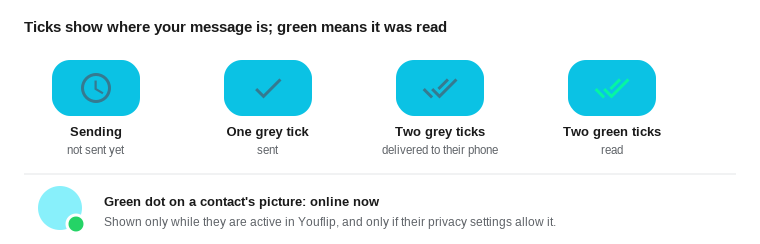
A clock means your message is still sending. One grey tick: sent. Two grey ticks: delivered to the other phone. Two green ticks: read.
If you turn off Read receipts (Settings, Privacy), you will not send or see read ticks in one-to-one chats. Read receipts are always sent in groups.
The green dot shows a contact is using Youflip right now. It turns off within about 3 minutes after they leave. Who can see your own dot and your last seen is set in Settings, Privacy (Choose who sees your last seen, photo and status).