The buttons during a call
In short
Along the bottom: microphone (mute or unmute yourself; white with a red line when you are muted), camera (turn your video on or off), speaker (loudspeaker on or off; blue when on), and the red button to end the call.
At the top: the minimise button on the left, and the signal indicator on the right. Green bars mean a good connection; a red bar means the connection is weak.
What you see during a video call
The faces in these pictures are drawn illustrations, not real people.
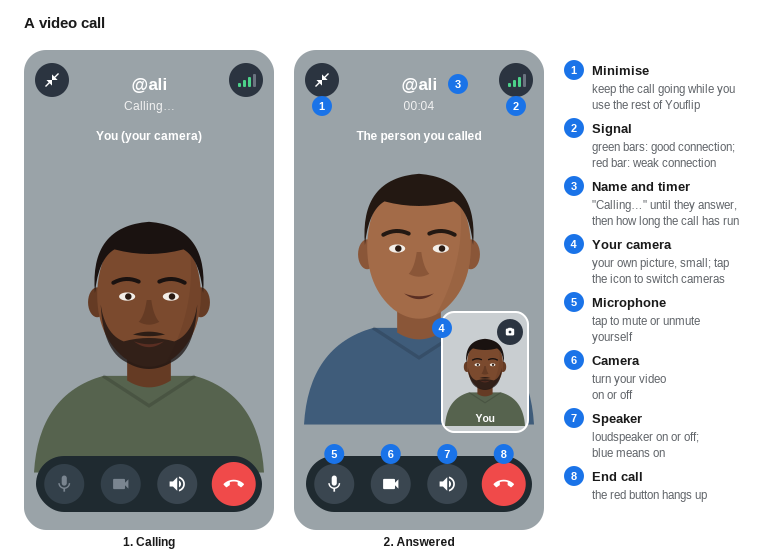
While calling. Your own camera fills the screen, with the other person's name and "Calling…" at the top. The microphone and camera buttons stay dimmed until the call is answered.
Once answered. The other person fills the screen and the timer starts counting. Your own picture moves to a small window; tap the switch icon on it to change between your front and back cameras.
The buttons along the bottom: microphone (mute or unmute yourself), camera (turn your video on or off), speaker (loudspeaker on or off) and the red button to end the call.
At the top: the minimise button on the left, and the signal indicator on the right. Green bars mean a good connection; a single red bar means the connection is weak and sound or video may break up.
What you see during a voice call
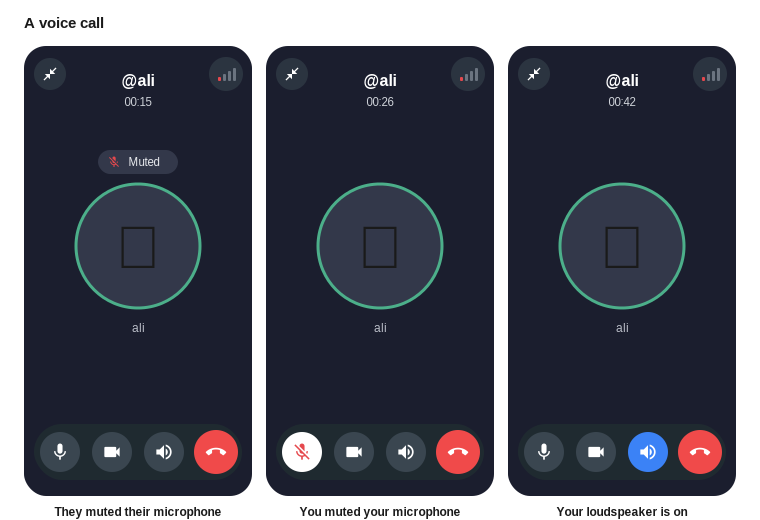
The circle in the middle shows the profile picture of the person you are calling, the one receiving the call. If they have no profile picture, the first letter of their name is shown instead. Their name or username is under it, and the call timer is at the top.
When the other person mutes their microphone, a small Muted label appears above their picture on your screen, so you know they cannot be heard until they unmute. The call itself carries on.
When you mute yourself, your microphone button turns white with a red line through it. The other person sees the Muted label on their screen. Tap the button again to unmute.
When you turn on the loudspeaker, the speaker button turns blue. Tap it again to go back to the earpiece.
The camera button lets you switch a voice call to video, and the red button ends the call.